> ## Documentation Index
> Fetch the complete documentation index at: https://docs-dev-chore-rate-limits-autoupdate-0.mintlify.site/llms.txt
> Use this file to discover all available pages before exploring further.

> Learn how to configure an update policy form using Forms for Actions for users to review and accept new terms of service or consent updates.

# Use Cases: Configure an update policy form using Forms

<Card title="Before you start">
  1. Create a [Machine-to-Machine Application](/docs/get-started/auth0-overview/create-applications/machine-to-machine-apps) with the following scopes enabled:

  * `read:users`
  * `update:users`
  * `create:users`
  * `read:users_app_metadata`
  * `update:users_app_metadata`
  * `create:users_app_metadata`

  2. Add a [Vault connection](/docs/customize/forms/vault) using the M2M application credentials.
</Card>

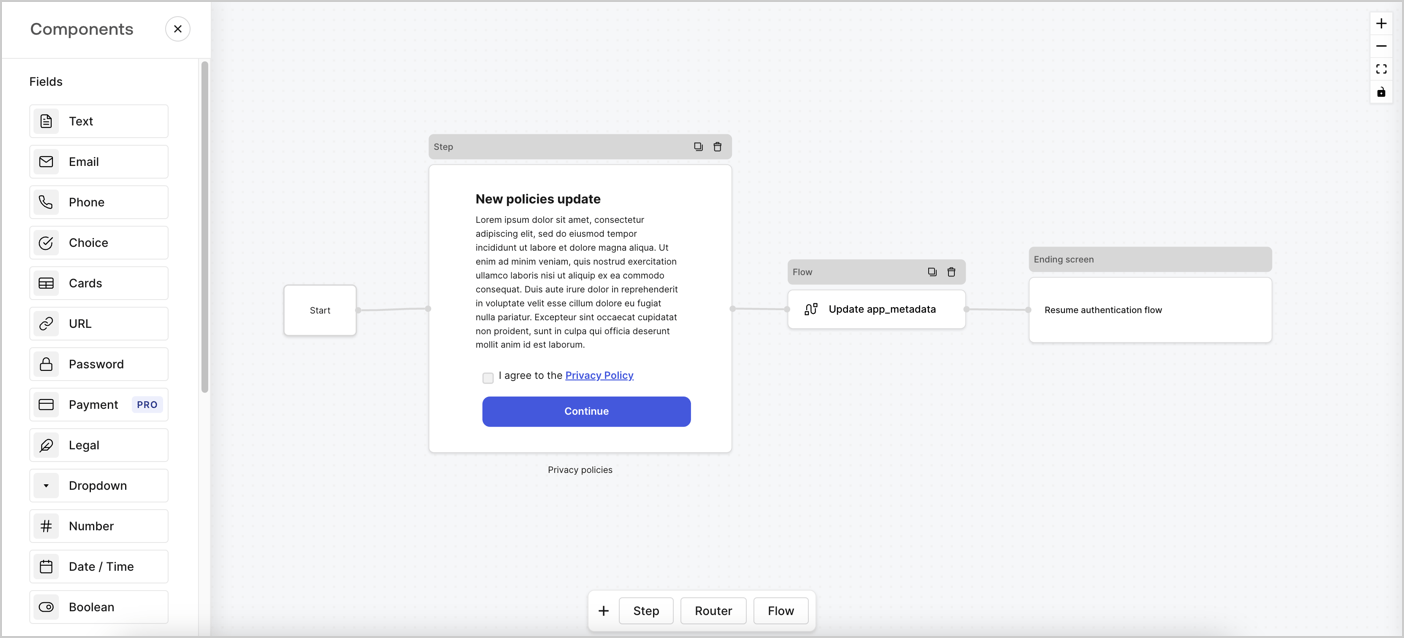
Forms for Actions allows you to create custom privacy policies flows and store the consent under the `app_metadata` object.
<Frame>
  <img src="https://mintcdn.com/docs-dev-chore-rate-limits-autoupdate-0/AmBmEbWbyIgMzdOb/docs/images/cdy7uua7fh8z/6i68dMvHDTijfRmSgN1x8Q/ad900e7d4c0fb34645921435472b8684/privavy-policy-form.png?fit=max&auto=format&n=AmBmEbWbyIgMzdOb&q=85&s=f38b39e3a967f12d99e46a9fb2f6ad33" alt="Dashboard > Actions > Forms > Privacy policy use case" data-og-width="1404" width="1404" data-og-height="638" height="638" data-path="docs/images/cdy7uua7fh8z/6i68dMvHDTijfRmSgN1x8Q/ad900e7d4c0fb34645921435472b8684/privavy-policy-form.png" data-optimize="true" data-opv="3" srcset="https://mintcdn.com/docs-dev-chore-rate-limits-autoupdate-0/AmBmEbWbyIgMzdOb/docs/images/cdy7uua7fh8z/6i68dMvHDTijfRmSgN1x8Q/ad900e7d4c0fb34645921435472b8684/privavy-policy-form.png?w=280&fit=max&auto=format&n=AmBmEbWbyIgMzdOb&q=85&s=37344a7037908735bcb54233c26358c7 280w, https://mintcdn.com/docs-dev-chore-rate-limits-autoupdate-0/AmBmEbWbyIgMzdOb/docs/images/cdy7uua7fh8z/6i68dMvHDTijfRmSgN1x8Q/ad900e7d4c0fb34645921435472b8684/privavy-policy-form.png?w=560&fit=max&auto=format&n=AmBmEbWbyIgMzdOb&q=85&s=e9f150b09315420863807908761e649d 560w, https://mintcdn.com/docs-dev-chore-rate-limits-autoupdate-0/AmBmEbWbyIgMzdOb/docs/images/cdy7uua7fh8z/6i68dMvHDTijfRmSgN1x8Q/ad900e7d4c0fb34645921435472b8684/privavy-policy-form.png?w=840&fit=max&auto=format&n=AmBmEbWbyIgMzdOb&q=85&s=0804077a746d4336a4949f0ba78d1f4b 840w, https://mintcdn.com/docs-dev-chore-rate-limits-autoupdate-0/AmBmEbWbyIgMzdOb/docs/images/cdy7uua7fh8z/6i68dMvHDTijfRmSgN1x8Q/ad900e7d4c0fb34645921435472b8684/privavy-policy-form.png?w=1100&fit=max&auto=format&n=AmBmEbWbyIgMzdOb&q=85&s=63c7bcee5981f885ab9a8fb2f25f7595 1100w, https://mintcdn.com/docs-dev-chore-rate-limits-autoupdate-0/AmBmEbWbyIgMzdOb/docs/images/cdy7uua7fh8z/6i68dMvHDTijfRmSgN1x8Q/ad900e7d4c0fb34645921435472b8684/privavy-policy-form.png?w=1650&fit=max&auto=format&n=AmBmEbWbyIgMzdOb&q=85&s=42d101f5e09087324810f55cf74c8a16 1650w, https://mintcdn.com/docs-dev-chore-rate-limits-autoupdate-0/AmBmEbWbyIgMzdOb/docs/images/cdy7uua7fh8z/6i68dMvHDTijfRmSgN1x8Q/ad900e7d4c0fb34645921435472b8684/privavy-policy-form.png?w=2500&fit=max&auto=format&n=AmBmEbWbyIgMzdOb&q=85&s=75090d0eab6839fe43b9ce02cdc82507 2500w" />
</Frame>

The sections below outline how you can create an Update Policy form using nodes and flows, along with steps for adding your form to a [Post Login](/docs/customize/actions/explore-triggers/signup-and-login-triggers/login-trigger) Action.

## Create a form from scratch

Follow these steps to create a form to gather information:

1. Open the Form editor by selecting **Auth0 Dashboard > Actions > Forms.**
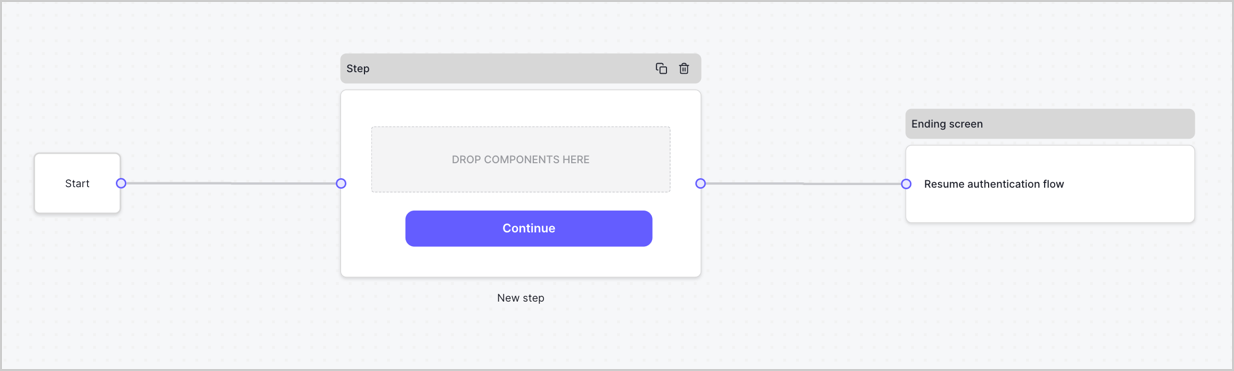
2. Select **Create Form** > **Start from scratch**.

By default, a new form contains a Start node, a Step node, and an Ending screen node.
<Frame>
  <img src="https://mintcdn.com/docs-dev-chore-rate-limits-autoupdate-0/Fx8qcFvQM5xQ4mQF/docs/images/cdy7uua7fh8z/2TZ9jSjgEcARFpULI6hz4R/a4319a1bd482f2ee5cc23100fdb2f42c/New-form-Forms-for-action-use-case.png?fit=max&auto=format&n=Fx8qcFvQM5xQ4mQF&q=85&s=e9521861dbf9d065d7e44c9fd54ca9f9" alt="Dashboard > Forms > Use Cases > Form" data-og-width="1234" width="1234" data-og-height="371" height="371" data-path="docs/images/cdy7uua7fh8z/2TZ9jSjgEcARFpULI6hz4R/a4319a1bd482f2ee5cc23100fdb2f42c/New-form-Forms-for-action-use-case.png" data-optimize="true" data-opv="3" srcset="https://mintcdn.com/docs-dev-chore-rate-limits-autoupdate-0/Fx8qcFvQM5xQ4mQF/docs/images/cdy7uua7fh8z/2TZ9jSjgEcARFpULI6hz4R/a4319a1bd482f2ee5cc23100fdb2f42c/New-form-Forms-for-action-use-case.png?w=280&fit=max&auto=format&n=Fx8qcFvQM5xQ4mQF&q=85&s=3ca4df15b2167ea4baf9af277af7b795 280w, https://mintcdn.com/docs-dev-chore-rate-limits-autoupdate-0/Fx8qcFvQM5xQ4mQF/docs/images/cdy7uua7fh8z/2TZ9jSjgEcARFpULI6hz4R/a4319a1bd482f2ee5cc23100fdb2f42c/New-form-Forms-for-action-use-case.png?w=560&fit=max&auto=format&n=Fx8qcFvQM5xQ4mQF&q=85&s=77eebe33cdee667eb78ccde2503e1ad1 560w, https://mintcdn.com/docs-dev-chore-rate-limits-autoupdate-0/Fx8qcFvQM5xQ4mQF/docs/images/cdy7uua7fh8z/2TZ9jSjgEcARFpULI6hz4R/a4319a1bd482f2ee5cc23100fdb2f42c/New-form-Forms-for-action-use-case.png?w=840&fit=max&auto=format&n=Fx8qcFvQM5xQ4mQF&q=85&s=370db7c324800681852e55ed0ffaf847 840w, https://mintcdn.com/docs-dev-chore-rate-limits-autoupdate-0/Fx8qcFvQM5xQ4mQF/docs/images/cdy7uua7fh8z/2TZ9jSjgEcARFpULI6hz4R/a4319a1bd482f2ee5cc23100fdb2f42c/New-form-Forms-for-action-use-case.png?w=1100&fit=max&auto=format&n=Fx8qcFvQM5xQ4mQF&q=85&s=dc2d91d3c5d011e6dd1db1faacc60543 1100w, https://mintcdn.com/docs-dev-chore-rate-limits-autoupdate-0/Fx8qcFvQM5xQ4mQF/docs/images/cdy7uua7fh8z/2TZ9jSjgEcARFpULI6hz4R/a4319a1bd482f2ee5cc23100fdb2f42c/New-form-Forms-for-action-use-case.png?w=1650&fit=max&auto=format&n=Fx8qcFvQM5xQ4mQF&q=85&s=edf11a08f3688ea4714b2491ceb3297f 1650w, https://mintcdn.com/docs-dev-chore-rate-limits-autoupdate-0/Fx8qcFvQM5xQ4mQF/docs/images/cdy7uua7fh8z/2TZ9jSjgEcARFpULI6hz4R/a4319a1bd482f2ee5cc23100fdb2f42c/New-form-Forms-for-action-use-case.png?w=2500&fit=max&auto=format&n=Fx8qcFvQM5xQ4mQF&q=85&s=29b7773b625485fc23facb3053a6d81a 2500w" />
</Frame>

### Configure the Step node

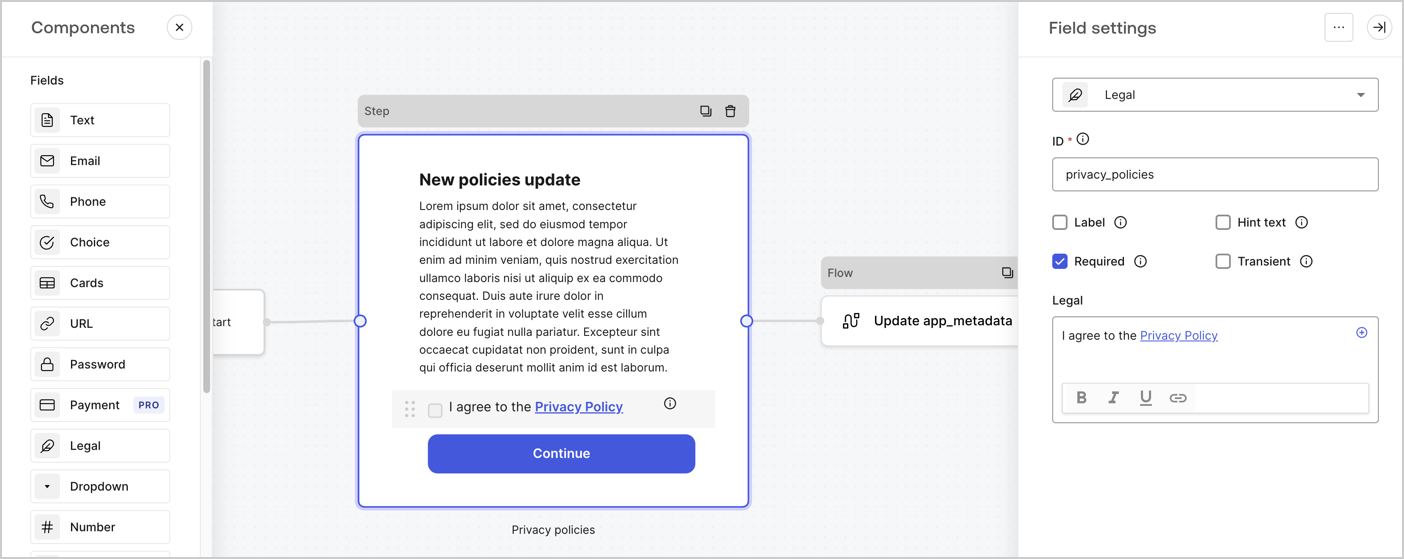
The Step node is the graphical interface visible to users. Add [Fields](/docs/customize/forms/nodes-and-components) to the Step node to collect the new agreement acceptance value by following these steps:

1. Drag a **Rich text** field from the **Components menu** into the **Step** node.

   * **Rich text**: Enter a description of your privacy policies updates.
   * Select **Save**.
2. Drag a **Legal** field into the **Step** node.

   * **ID**: Enter `privacy_policies`.
   * **Required**: Enable the checkbox.
   * **Legal**: Enter `I agree to the Privacy Policy`.
   * Select **Save**.
3. Select **Publish** to save.
<Frame>
  <img src="https://mintcdn.com/docs-dev-chore-rate-limits-autoupdate-0/XsbqYtjDAWYgFY7Q/docs/images/cdy7uua7fh8z/59zFFjQjAnjogkc2QGIqqJ/0ad66b1b636544122aa4e65968b76c2c/privacy-policy-step-node.png?fit=max&auto=format&n=XsbqYtjDAWYgFY7Q&q=85&s=bbce0778a2e4ff6022b68b16a501aba1" alt="Dashboard > Actions > Forms > Use case privacy policy step node" data-og-width="1404" width="1404" data-og-height="559" height="559" data-path="docs/images/cdy7uua7fh8z/59zFFjQjAnjogkc2QGIqqJ/0ad66b1b636544122aa4e65968b76c2c/privacy-policy-step-node.png" data-optimize="true" data-opv="3" srcset="https://mintcdn.com/docs-dev-chore-rate-limits-autoupdate-0/XsbqYtjDAWYgFY7Q/docs/images/cdy7uua7fh8z/59zFFjQjAnjogkc2QGIqqJ/0ad66b1b636544122aa4e65968b76c2c/privacy-policy-step-node.png?w=280&fit=max&auto=format&n=XsbqYtjDAWYgFY7Q&q=85&s=91795bf22b4a3baa6455d65b3f1d6a52 280w, https://mintcdn.com/docs-dev-chore-rate-limits-autoupdate-0/XsbqYtjDAWYgFY7Q/docs/images/cdy7uua7fh8z/59zFFjQjAnjogkc2QGIqqJ/0ad66b1b636544122aa4e65968b76c2c/privacy-policy-step-node.png?w=560&fit=max&auto=format&n=XsbqYtjDAWYgFY7Q&q=85&s=b0c7aeb74cf3cf85d7a34754d6f95410 560w, https://mintcdn.com/docs-dev-chore-rate-limits-autoupdate-0/XsbqYtjDAWYgFY7Q/docs/images/cdy7uua7fh8z/59zFFjQjAnjogkc2QGIqqJ/0ad66b1b636544122aa4e65968b76c2c/privacy-policy-step-node.png?w=840&fit=max&auto=format&n=XsbqYtjDAWYgFY7Q&q=85&s=a3b66fe3bcbab496a5aae4d33605df23 840w, https://mintcdn.com/docs-dev-chore-rate-limits-autoupdate-0/XsbqYtjDAWYgFY7Q/docs/images/cdy7uua7fh8z/59zFFjQjAnjogkc2QGIqqJ/0ad66b1b636544122aa4e65968b76c2c/privacy-policy-step-node.png?w=1100&fit=max&auto=format&n=XsbqYtjDAWYgFY7Q&q=85&s=685eb57952af83542949f95f9f3a78f6 1100w, https://mintcdn.com/docs-dev-chore-rate-limits-autoupdate-0/XsbqYtjDAWYgFY7Q/docs/images/cdy7uua7fh8z/59zFFjQjAnjogkc2QGIqqJ/0ad66b1b636544122aa4e65968b76c2c/privacy-policy-step-node.png?w=1650&fit=max&auto=format&n=XsbqYtjDAWYgFY7Q&q=85&s=1fa426c3b68e468656c362b972b11519 1650w, https://mintcdn.com/docs-dev-chore-rate-limits-autoupdate-0/XsbqYtjDAWYgFY7Q/docs/images/cdy7uua7fh8z/59zFFjQjAnjogkc2QGIqqJ/0ad66b1b636544122aa4e65968b76c2c/privacy-policy-step-node.png?w=2500&fit=max&auto=format&n=XsbqYtjDAWYgFY7Q&q=85&s=7034b87c58cda9ba2427c8d0caeb196d 2500w" />
</Frame>

### Configure the Flow node

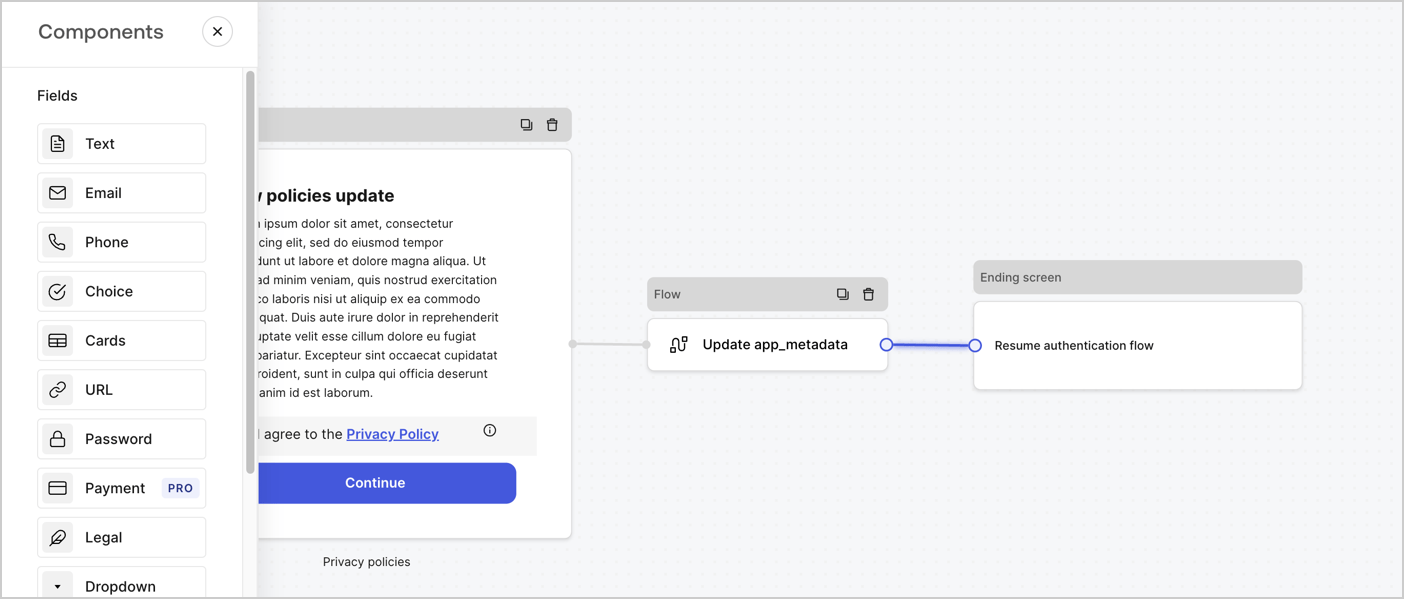
Add a **Flow** node after the **Step** node to update the `app_metadata` and resume the authentication flow by following these steps:

1. Select **Flow** from the bottom of the Form editor.
2. Remove the existing link between the **Step** and **Ending Screen** nodes.
3. Select the new **Flow** > **Click to add a flow** > **Create a new flow.**

   * Enter `Update app_metadata` in the **Name** field.
   * Select **Create**.
   * Select **Save**.
4. Link the **Flow** node to the **Step** and **Ending Screen** nodes as pictured below.
5. Select **Publish** to save.
<Frame>
  <img src="https://mintcdn.com/docs-dev-chore-rate-limits-autoupdate-0/AmBmEbWbyIgMzdOb/docs/images/cdy7uua7fh8z/6YIkzm7SrpM9LW76AXuRzh/353c518fe82bbaa440836da1d83596d6/link-policies.png?fit=max&auto=format&n=AmBmEbWbyIgMzdOb&q=85&s=d1307a82ee380470280df71d00787d98" alt="Dashboard > Actions > Forms > Form" data-og-width="1404" width="1404" data-og-height="599" height="599" data-path="docs/images/cdy7uua7fh8z/6YIkzm7SrpM9LW76AXuRzh/353c518fe82bbaa440836da1d83596d6/link-policies.png" data-optimize="true" data-opv="3" srcset="https://mintcdn.com/docs-dev-chore-rate-limits-autoupdate-0/AmBmEbWbyIgMzdOb/docs/images/cdy7uua7fh8z/6YIkzm7SrpM9LW76AXuRzh/353c518fe82bbaa440836da1d83596d6/link-policies.png?w=280&fit=max&auto=format&n=AmBmEbWbyIgMzdOb&q=85&s=e71636533813856a6a677a8de9ec263e 280w, https://mintcdn.com/docs-dev-chore-rate-limits-autoupdate-0/AmBmEbWbyIgMzdOb/docs/images/cdy7uua7fh8z/6YIkzm7SrpM9LW76AXuRzh/353c518fe82bbaa440836da1d83596d6/link-policies.png?w=560&fit=max&auto=format&n=AmBmEbWbyIgMzdOb&q=85&s=a55544d6881d843dd010fa1f878297e6 560w, https://mintcdn.com/docs-dev-chore-rate-limits-autoupdate-0/AmBmEbWbyIgMzdOb/docs/images/cdy7uua7fh8z/6YIkzm7SrpM9LW76AXuRzh/353c518fe82bbaa440836da1d83596d6/link-policies.png?w=840&fit=max&auto=format&n=AmBmEbWbyIgMzdOb&q=85&s=8ed1f579cc9fdf25d7f3841065833ebf 840w, https://mintcdn.com/docs-dev-chore-rate-limits-autoupdate-0/AmBmEbWbyIgMzdOb/docs/images/cdy7uua7fh8z/6YIkzm7SrpM9LW76AXuRzh/353c518fe82bbaa440836da1d83596d6/link-policies.png?w=1100&fit=max&auto=format&n=AmBmEbWbyIgMzdOb&q=85&s=9e398224cc9e508e314c2d75550bd215 1100w, https://mintcdn.com/docs-dev-chore-rate-limits-autoupdate-0/AmBmEbWbyIgMzdOb/docs/images/cdy7uua7fh8z/6YIkzm7SrpM9LW76AXuRzh/353c518fe82bbaa440836da1d83596d6/link-policies.png?w=1650&fit=max&auto=format&n=AmBmEbWbyIgMzdOb&q=85&s=e433c5f6990ebc3abd437ea3165b1b02 1650w, https://mintcdn.com/docs-dev-chore-rate-limits-autoupdate-0/AmBmEbWbyIgMzdOb/docs/images/cdy7uua7fh8z/6YIkzm7SrpM9LW76AXuRzh/353c518fe82bbaa440836da1d83596d6/link-policies.png?w=2500&fit=max&auto=format&n=AmBmEbWbyIgMzdOb&q=85&s=bee7714c508f10d49a328d550562c487 2500w" />
</Frame>

Add an Auth0 Update user action to the flow by following these steps:

1. Select the **Flow** **Update app\_metadata** > **Edit flow** to open the Flow editor in a new tab.
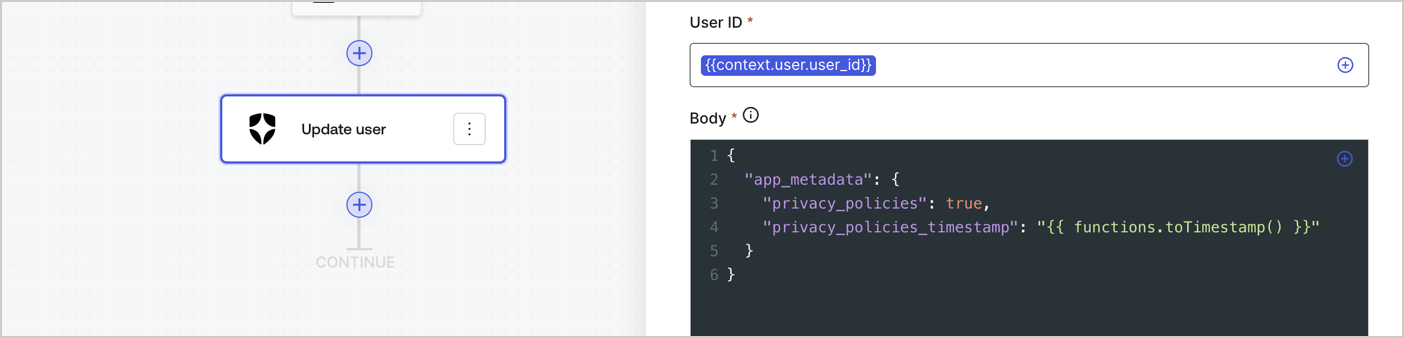
2. Below the StartAction, select the **+** icon to add an **Update user** action. Complete the fields below, then select **Save** to continue.

   * **Connection**: Select from the dropdown the Vault connection to your M2M application.

   * **User ID**: Enter `{{context.user.user_id}}`.

   * **Body**: Copy and paste the following code to update the app\_metadata with the privacy\_policies and privacy\_policies\_timestamp properties.

     ```text lines theme={null}
     {
       "app_metadata": {
         "privacy_policies": true,
         "privacy_policies_timestamp": "{{ functions.toTimestamp() }}"
       }
     }
     ```

   * Select **Save**.
3. Select **Publish** to save.
<Frame>
  <img src="https://mintcdn.com/docs-dev-chore-rate-limits-autoupdate-0/3XqCswr976xXOMhi/docs/images/cdy7uua7fh8z/CvMNIwWrOUwaFW4X3G28p/1fb70ae57a20749d9ffaaba8dc0b7e26/update-user-privacy.png?fit=max&auto=format&n=3XqCswr976xXOMhi&q=85&s=f8612c61660fda4c2e55620127411334" alt="Dashboard > Actions > Forms > User case privacy policy code" data-og-width="1404" width="1404" data-og-height="338" height="338" data-path="docs/images/cdy7uua7fh8z/CvMNIwWrOUwaFW4X3G28p/1fb70ae57a20749d9ffaaba8dc0b7e26/update-user-privacy.png" data-optimize="true" data-opv="3" srcset="https://mintcdn.com/docs-dev-chore-rate-limits-autoupdate-0/3XqCswr976xXOMhi/docs/images/cdy7uua7fh8z/CvMNIwWrOUwaFW4X3G28p/1fb70ae57a20749d9ffaaba8dc0b7e26/update-user-privacy.png?w=280&fit=max&auto=format&n=3XqCswr976xXOMhi&q=85&s=c792abb158e8460d1aed7e3a46e0c9d6 280w, https://mintcdn.com/docs-dev-chore-rate-limits-autoupdate-0/3XqCswr976xXOMhi/docs/images/cdy7uua7fh8z/CvMNIwWrOUwaFW4X3G28p/1fb70ae57a20749d9ffaaba8dc0b7e26/update-user-privacy.png?w=560&fit=max&auto=format&n=3XqCswr976xXOMhi&q=85&s=adcd40ee0e0fe5be7874c279dbbf29ff 560w, https://mintcdn.com/docs-dev-chore-rate-limits-autoupdate-0/3XqCswr976xXOMhi/docs/images/cdy7uua7fh8z/CvMNIwWrOUwaFW4X3G28p/1fb70ae57a20749d9ffaaba8dc0b7e26/update-user-privacy.png?w=840&fit=max&auto=format&n=3XqCswr976xXOMhi&q=85&s=dca87f06c17b5cf581adeef713e78854 840w, https://mintcdn.com/docs-dev-chore-rate-limits-autoupdate-0/3XqCswr976xXOMhi/docs/images/cdy7uua7fh8z/CvMNIwWrOUwaFW4X3G28p/1fb70ae57a20749d9ffaaba8dc0b7e26/update-user-privacy.png?w=1100&fit=max&auto=format&n=3XqCswr976xXOMhi&q=85&s=7371f898371928460fe555181767ad95 1100w, https://mintcdn.com/docs-dev-chore-rate-limits-autoupdate-0/3XqCswr976xXOMhi/docs/images/cdy7uua7fh8z/CvMNIwWrOUwaFW4X3G28p/1fb70ae57a20749d9ffaaba8dc0b7e26/update-user-privacy.png?w=1650&fit=max&auto=format&n=3XqCswr976xXOMhi&q=85&s=f17db35dfae09c0e87d3f0549e6470a7 1650w, https://mintcdn.com/docs-dev-chore-rate-limits-autoupdate-0/3XqCswr976xXOMhi/docs/images/cdy7uua7fh8z/CvMNIwWrOUwaFW4X3G28p/1fb70ae57a20749d9ffaaba8dc0b7e26/update-user-privacy.png?w=2500&fit=max&auto=format&n=3XqCswr976xXOMhi&q=85&s=713f2cce73ea26d8658beff4dcdbaddc 2500w" />
</Frame>

<Callout icon="file-lines" color="#0EA5E9" iconType="regular">
  The flow **Update app\_metadata** adds a `privacy_policies true` value to the app`_metadata` object and also generates a timestamp with a [helper function.](/docs/customize/forms/variables)
</Callout>

## Retrieve the form render code

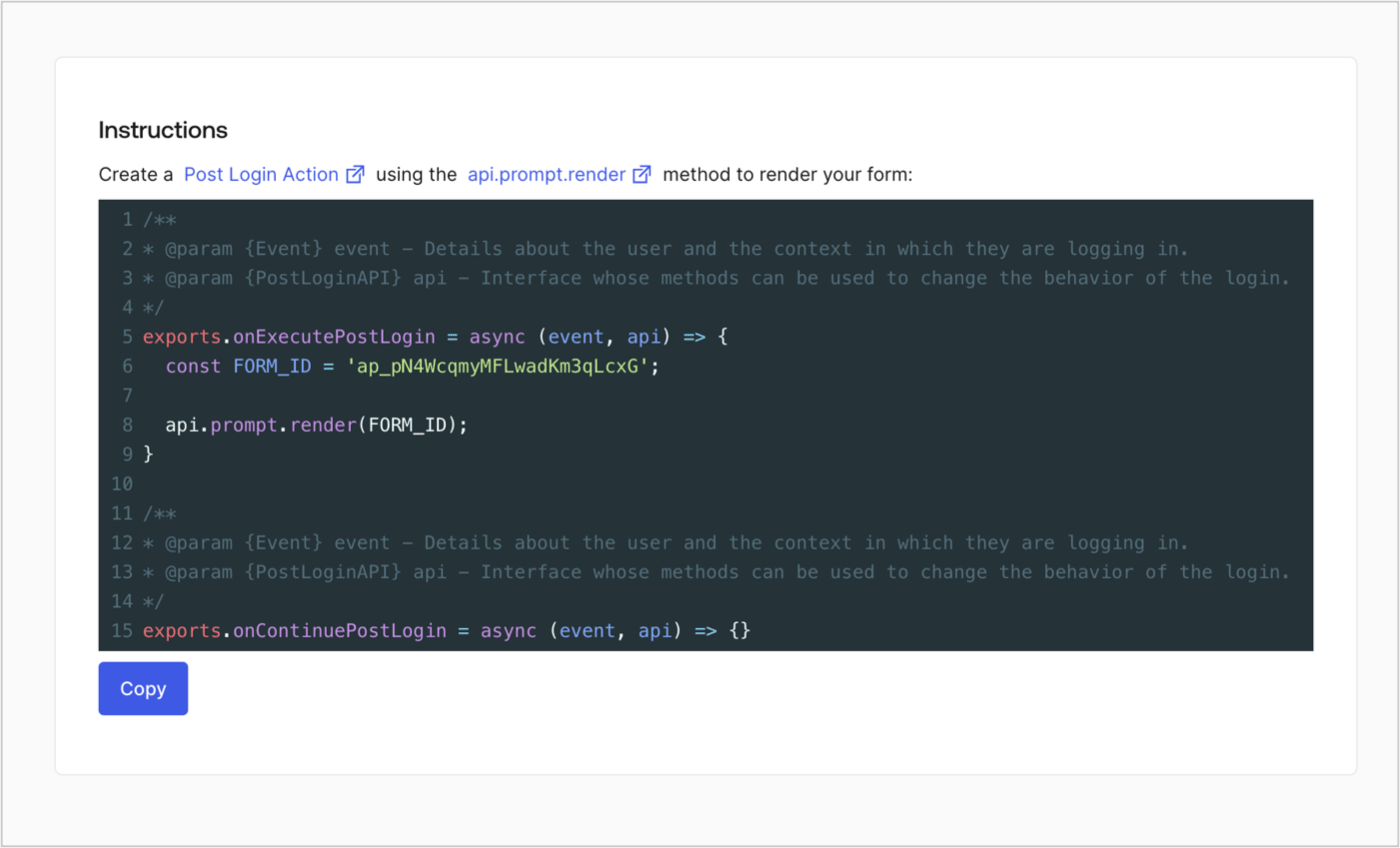
Retrieve your form render code to visually render the form with a custom Post Login Action by following these steps:

* From the Form editor, select **`<> Render`**.
* Select **Copy**.
<Frame>
  <img src="https://mintcdn.com/docs-dev-chore-rate-limits-autoupdate-0/LjeMhc2cON3x2kn0/docs/images/cdy7uua7fh8z/2EIUzc539sq9lwoTKbjoJv/496a864c0fc44a782c9cadca119dbfb0/embed.png?fit=max&auto=format&n=LjeMhc2cON3x2kn0&q=85&s=9d0e75c918404b8ebce7ea7e106af59d" alt="Dashboard > Actions > Forms > Form > Embed" data-og-width="1400" width="1400" data-og-height="848" height="848" data-path="docs/images/cdy7uua7fh8z/2EIUzc539sq9lwoTKbjoJv/496a864c0fc44a782c9cadca119dbfb0/embed.png" data-optimize="true" data-opv="3" srcset="https://mintcdn.com/docs-dev-chore-rate-limits-autoupdate-0/LjeMhc2cON3x2kn0/docs/images/cdy7uua7fh8z/2EIUzc539sq9lwoTKbjoJv/496a864c0fc44a782c9cadca119dbfb0/embed.png?w=280&fit=max&auto=format&n=LjeMhc2cON3x2kn0&q=85&s=425bd086761dbd5a65f19e8f3823b2f8 280w, https://mintcdn.com/docs-dev-chore-rate-limits-autoupdate-0/LjeMhc2cON3x2kn0/docs/images/cdy7uua7fh8z/2EIUzc539sq9lwoTKbjoJv/496a864c0fc44a782c9cadca119dbfb0/embed.png?w=560&fit=max&auto=format&n=LjeMhc2cON3x2kn0&q=85&s=c628c53508d3fdead4bdeef5518b19f2 560w, https://mintcdn.com/docs-dev-chore-rate-limits-autoupdate-0/LjeMhc2cON3x2kn0/docs/images/cdy7uua7fh8z/2EIUzc539sq9lwoTKbjoJv/496a864c0fc44a782c9cadca119dbfb0/embed.png?w=840&fit=max&auto=format&n=LjeMhc2cON3x2kn0&q=85&s=5569ca06e2a78c29562ad04be2d7e2c0 840w, https://mintcdn.com/docs-dev-chore-rate-limits-autoupdate-0/LjeMhc2cON3x2kn0/docs/images/cdy7uua7fh8z/2EIUzc539sq9lwoTKbjoJv/496a864c0fc44a782c9cadca119dbfb0/embed.png?w=1100&fit=max&auto=format&n=LjeMhc2cON3x2kn0&q=85&s=af267e3ee2519001191fa7edfed070e2 1100w, https://mintcdn.com/docs-dev-chore-rate-limits-autoupdate-0/LjeMhc2cON3x2kn0/docs/images/cdy7uua7fh8z/2EIUzc539sq9lwoTKbjoJv/496a864c0fc44a782c9cadca119dbfb0/embed.png?w=1650&fit=max&auto=format&n=LjeMhc2cON3x2kn0&q=85&s=416d73670b4bf7ae1fc7d017f61d6c97 1650w, https://mintcdn.com/docs-dev-chore-rate-limits-autoupdate-0/LjeMhc2cON3x2kn0/docs/images/cdy7uua7fh8z/2EIUzc539sq9lwoTKbjoJv/496a864c0fc44a782c9cadca119dbfb0/embed.png?w=2500&fit=max&auto=format&n=LjeMhc2cON3x2kn0&q=85&s=6010b76f98d538e4422fefa1201e6cd0 2500w" />
</Frame>

## Create a Post Login Action

Create a post-login Action to render your form by following these steps:

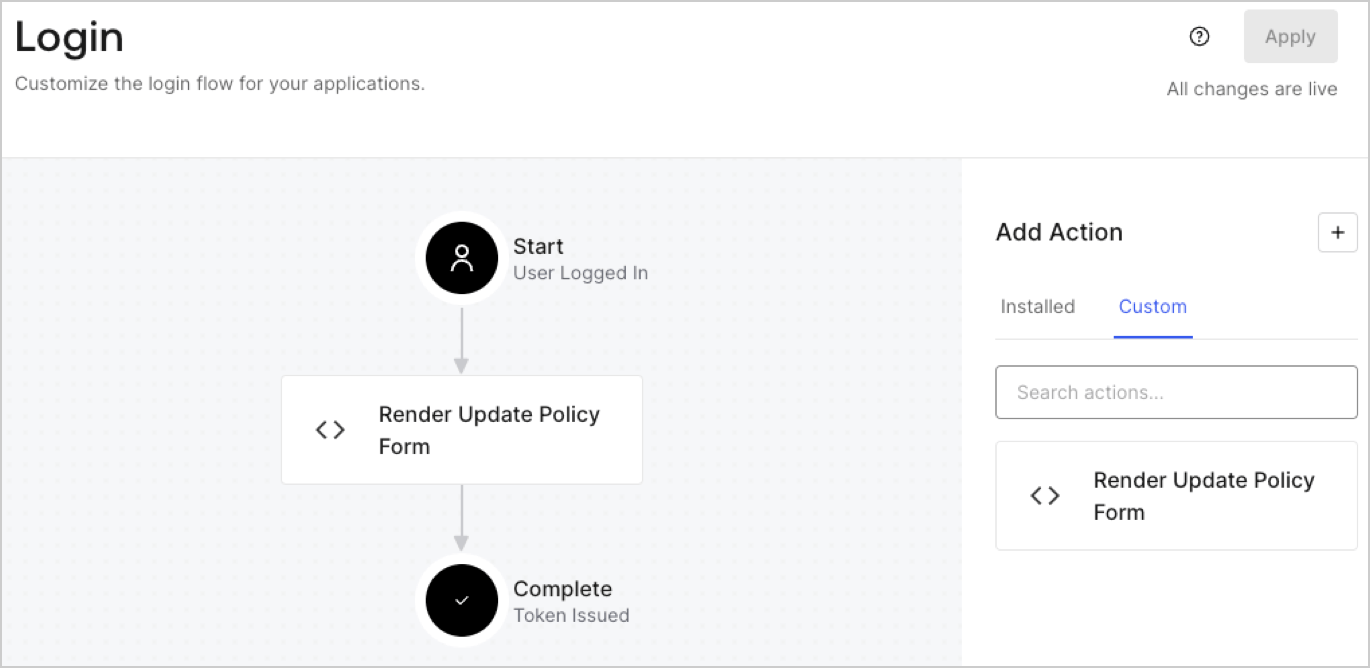
1. Navigate to **Auth0 Dashboard > Actions > Flows > Login.**
2. Select the **+** icon and Select **Build from scratch**:

   * **Name**: Enter `Render Update Policy Form`.
   * **Trigger**: Select `Login / Post Login`.
   * **Runtime**: Select the recommended version.
3. Select **Create**.

To configure the post-login Action:

1. Delete the existing code from the Code editor.
2. Paste the form render code into the Code editor.
3. Edit the code to define the conditional logic that will render the form.

   ```javascript lines theme={null}
   /**
   * @param {Event} event - Details about the user and the context in which they are logging in.
   * @param {PostLoginAPI} api - Interface whose methods can be used to change the behavior of the login.
   */
   exports.onExecutePostLogin = async (event, api) => {
     const FORM_ID = 'REPLACE_WITH_YOUR_FORM_ID';

     if (event.user.app_metadata.privacy_policies !== true) {
       api.prompt.render(FORM_ID);
     }
   }

   exports.onContinuePostLogin = async (event, api) => { }
   ```

   <Callout icon="file-lines" color="#0EA5E9" iconType="regular">
     The example code above will render the form when a user is missing the app metadata `privacy_policies` property.
   </Callout>
4. Select **Deploy.**
5. Drag and Drop the **Render Update Policy Form** Action to the **Login** flow.
   <Frame>
     <img src="https://mintcdn.com/docs-dev-chore-rate-limits-autoupdate-0/ptCVmH_J2WcyjS_5/docs/images/cdy7uua7fh8z/5TOwDgevZsBqd7yZynUYWU/41ca909dc3007aed4f40ff794a05efa5/postlogin.png?fit=max&auto=format&n=ptCVmH_J2WcyjS_5&q=85&s=5fd7b6baee5fde391e7860e81a5ceaa7" alt="Dashboard > Forms > Use Case > Render update policy form login action" data-og-width="1370" width="1370" data-og-height="668" height="668" data-path="docs/images/cdy7uua7fh8z/5TOwDgevZsBqd7yZynUYWU/41ca909dc3007aed4f40ff794a05efa5/postlogin.png" data-optimize="true" data-opv="3" srcset="https://mintcdn.com/docs-dev-chore-rate-limits-autoupdate-0/ptCVmH_J2WcyjS_5/docs/images/cdy7uua7fh8z/5TOwDgevZsBqd7yZynUYWU/41ca909dc3007aed4f40ff794a05efa5/postlogin.png?w=280&fit=max&auto=format&n=ptCVmH_J2WcyjS_5&q=85&s=4799c022bc7c8c5729de83db6fdc2bad 280w, https://mintcdn.com/docs-dev-chore-rate-limits-autoupdate-0/ptCVmH_J2WcyjS_5/docs/images/cdy7uua7fh8z/5TOwDgevZsBqd7yZynUYWU/41ca909dc3007aed4f40ff794a05efa5/postlogin.png?w=560&fit=max&auto=format&n=ptCVmH_J2WcyjS_5&q=85&s=f8df2e1e7945860f04b1a00a74025ca4 560w, https://mintcdn.com/docs-dev-chore-rate-limits-autoupdate-0/ptCVmH_J2WcyjS_5/docs/images/cdy7uua7fh8z/5TOwDgevZsBqd7yZynUYWU/41ca909dc3007aed4f40ff794a05efa5/postlogin.png?w=840&fit=max&auto=format&n=ptCVmH_J2WcyjS_5&q=85&s=322b736286b03e300161fbf00b935576 840w, https://mintcdn.com/docs-dev-chore-rate-limits-autoupdate-0/ptCVmH_J2WcyjS_5/docs/images/cdy7uua7fh8z/5TOwDgevZsBqd7yZynUYWU/41ca909dc3007aed4f40ff794a05efa5/postlogin.png?w=1100&fit=max&auto=format&n=ptCVmH_J2WcyjS_5&q=85&s=94e0aec1a873538e4974bdfd75c9071a 1100w, https://mintcdn.com/docs-dev-chore-rate-limits-autoupdate-0/ptCVmH_J2WcyjS_5/docs/images/cdy7uua7fh8z/5TOwDgevZsBqd7yZynUYWU/41ca909dc3007aed4f40ff794a05efa5/postlogin.png?w=1650&fit=max&auto=format&n=ptCVmH_J2WcyjS_5&q=85&s=ad57793fb5bb06192922c379791def0c 1650w, https://mintcdn.com/docs-dev-chore-rate-limits-autoupdate-0/ptCVmH_J2WcyjS_5/docs/images/cdy7uua7fh8z/5TOwDgevZsBqd7yZynUYWU/41ca909dc3007aed4f40ff794a05efa5/postlogin.png?w=2500&fit=max&auto=format&n=ptCVmH_J2WcyjS_5&q=85&s=f7e56e32bb79017f0696e8986b5af00b 2500w" />
   </Frame>
6. Select **Apply.**

### Test implementation

Test the implementation by following these steps:

1. Log in with an existing user whose app`_metadata` attribute `privacy_policies` does not have a value.
2. The post-login Action in the Login flow will render the form and prompt for acceptance.
3. Select **Auth0 Dashboard > User Management > Users,** locate the user and verify that the `app_metadata` attribute `privacy_policies` contains a `true` value and a timestamp.
